
Why is the Login page telling me my account has not yet been activated?
Why doesn’t the Login page recognize my username or password?
How do I run a basic search in Fastcase 7?
How do I run an advanced search in Fastcase 7?
What if I selected a jurisdiction in error?
What is a Boolean/Keyword search?
I’m not getting the results that I expect using the OR operator.
What is a Natural Language search?
How do I search for multiple citations at once?
How do I browse a statute, regulation, court rule, or other secondary material?
How do I browse the newspaper archive?
How do I browse the Legal Forms?
How do I browse Federal Filings?
Can I “Shepardize” cases on Fastcase?
How do I print or save a document?
How do I add documents to my print queue?
How do I print from my print queue?
How do I remove documents from my print queue?
I previously printed a document. Can I print it again?
How do I retrieve my recent search history?
What browsers are compatible with Fastcase?
What resolution screen works best with Fastcase?
I’m trying to subscribe, but Fastcase will not accept my credit card information.
Does my bar association offer Fastcase as a member benefit?
How can I access the Fastcase mobile applications?
How do I use Copy with citation?
I am looking for a case and I know the citation but I can’t find it.
How can I contact Customer Support for additional assistance?
What is covered by the National Appellate subscription?
What is covered by the National Premium subscription?
How current is the legal research database?
Why is my case missing pagination?
How do I check current version on a statute, regulation, court rule or other secondary material?
How do annual subscriptions work?
How do monthly subscriptions work?
How do bar association premium upgrades work?
If you’ve already signed up for a desktop subscription and you’re still getting this message, then check your email inbox. We send an activation email to all of our new subscribers that includes a link to activate your account. If you’re not seeing it there, check your spam filter, or contact customer support for help at 1-866-773-2782 or at support@fastcase.com.
If you’re only registered for our mobile apps, then your account won’t be activated to use on fastcase.com. You can keep using the app for free, or you can try the full-featured desktop version by signing up for a trial subscription at www.fastcase.com/subscription.
Why doesn’t the Login page recognize my username or password?
If you’re seeing an error message saying “We did not recognize your username or password,” make sure you typed both the username and password correctly. Any extra or incorrect characters could cause this problem. Keep in mind that passwords are case sensitive!
Your username is your email address. If you don’t remember the password you signed up with, there’s an orange button near the top of the screen that says “Forgot Your Password?”. You can click that button to reset your password.
If you’re a member of one of our partner bar associations, see the entry below.
I am a member of a bar association that offers Fastcase as a member benefit. Why am I having trouble logging in?
If you are a member of an affiliated bar association, you must log in through your respective bar association website, using the login credentials specified by your bar association. If problems occur with this procedure, please contact your bar association. They will be able to assist you with any login difficulties.
How do I run a basic search in Fastcase 7?
You can run a search from any screen in Fastcase 7. Simply click on the search box, enter your search terms, and click “Go.” To return to the homepage, click fastcase in the upper left corner.
How do I run an advanced search in Fastcase 7?
Click on “Advanced” to the right of the search bar. You can filter by jurisdiction, libraries, recently searched and date range. Once you have selected the appropriate databases for your search, you can enter a search phrase and click “Go” to begin your search. To exit out of advanced search, click the X in the upper right corner.
Jurisdiction
To filter by jurisdiction, select a jurisdiction from the complete jurisdiction library under “Recently Searched” jurisdictions or “State Jurisdictions.” If you narrow your search by “State Jurisdictions”, once you click on a state, the box directly below will show the options for that state’s materials. From there you can select the different databases, including the state’s code, case law or all materials.
Libraries
You can filter by libraries in the “Choose Libraries” section based on title, type (case law, regulation, and more), jurisdiction, and/or court level.
Date Range
You can specify a date range, or leave that field blank in order to get all results from the Fastcase database.
Sort Results By
Selecting the “Sort Results By” option allows you to specify the order of results in which your search will appear.
What if I selected a jurisdiction in error?
Selected jurisdictions will show beneath the “Search” box at the top of the advanced search page next to “Search Options”. To remove an individual jurisdiction, select the “x” next to the jurisdiction name. To remove all jurisdictions, select “Remove All.”
What is a Boolean/ Keyword search?
“Boolean” (or “keyword”) searches are familiar to most users who search on the Web. They allow searchers to use terms such as AND, OR, NOT, ( ), “ ”, &, *, ?, to find cases germane to a research question. Using “w/n” between two search terms (where n is a number) will find cases in which the two terms appear within n words of each other. The asterisk is a wildcard operator. Fastcase uses the “implied AND” search protocol, which means if there is no connector between search terms, it is treated as if the “AND” connector was used. For a complete list of Boolean operators, select “Advanced” for an advanced search, then click on the “Show Search Tips” box on the bottom left.
I performed a keyword search with multiple search terms in quotation marks or connected with the w/x operator, but in my search results every single search term is highlighted, even when it appears by itself. What is going on?
Our highlighting feature highlights each instance of your search terms in a case, even when a particular term appears separately from the other terms in your query. For example, if you search for “felony murder” or for felony w/3 murder, the terms “felony” and “murder” will be highlighted in your search results wherever they appear (even if they appear alone). Please keep in mind that the highlighting feature does not impact our search algorithm. So your search results will contain the exact phrase “felony murder” or have the term “felony” within three words of “murder” somewhere in the case – you may just need to scroll a bit further into the case.
I’m not getting the results that I expect using the OR operator.
The search connectors in Fastcase use an order of operations, just like connectors do in math. This can lead to unexpected results if you’re not careful, so remember that it’s always best to group your OR terms in parentheses. E.g., getaway & (car or vehicle)
What is a Natural Language search?
Natural language searches are much less precise, but are a good place to start if you don’t have exact search terms. A Natural Language search works well if you want to include certain words in your keyword search that might or might not appear in the result. For example, if you wanted to search for the phrase “Rule 11 sanctions for frivolous filing”, a Natural Language search would return the most relevant results, even if the word “frivolous” did not appear. Unlike a Boolean search that would only list cases using the word “frivolous”.
How do I search for multiple citations at once?
Please make sure that each of your citations are in the correct bluebook format. For more information, see the “What is a Citation search?” question. Separate each citation with a comma. Example: 158 F.3d 693, 102 F.3d 132, 418 So.2d 493.
How do I browse a statute, regulation, court rule, or other secondary material?
Click on the “Outline View” next to the “Advanced” link to the right of the search bar. Select the particular library that you are interested in browsing. You can navigate through the library by clicking on the title for each section.
How do I browse the newspaper archive?
Newspapers are provided through a partnership with “Newslibrary.com”. To browse the archive, click on the “Advanced” link. Toward the bottom right corner is a box labeled “Other Resources”. Select “Search Newspapers” and you will be taken to the newspaper search engine. Please be advised that there are additional charges for accessing documents using this transactional search service from our partner.
How do I browse the Legal Forms?
Legal forms are provided through a partnership with “US Legal Forms.” To browse the archive, click on the “Advanced” link. Toward the bottom right corner is a box labeled “Other Resources”. Select “Search Legal Forms” and you will be taken to the legal form search engine. Please be advised that there are additional charges for accessing documents using this transactional search service from our partner.
How do I browse Federal Filings?
A Federal Filings search is provided through a partnership with “Justia”. To browse the archive, click on the “Advanced” link. Toward the bottom right corner is a box labeled “Other Resources”. Select “Search Federal Filings” and you will be taken to the federal filings search engine. Please be advised that there are additional charges for accessing documents using this transactional search service from our partner.
Can I “Shepardize” cases on Fastcase?
Shepard’s is a trademark of Shepard’s Company, a wholly owned subsidiary of Reed Elsevier, Inc.
Fastcase has a unique feature, Bad Law Bot, which provides an innovative way to quickly determine when courts have commented negatively on a case. Although it is not a traditional “editorial citator,” Bad Law Bot takes citation analysis to the next level by extracting the enormous wealth of negative information contained in citations. Bad Law Bot uses algorithms to find the negative citation history of a case. Bad Law Bot will place a red flag next to cases when it recognizes negative treatment of a case.
In successive iterations over time, Bad Law Bot has shown to be as good, and better, than traditional editorial citators – with more improvements made every day through machine learning.
You can use Authority Check to locate negative treatment to a case or to sort your search results. “Authority Check” will appear to the right of your search results. Below “Authority Check” you can sort using “Results” or “Database”. Sorting using “Results” pulls cases cited the most within your search to the top of your search results. Sorting using “Database” pulls cases cited to the most within the entire Fastcase Database to the top of your search results.
Once you select the case you want, you can click on the flag in the upper left corner of the case. This will take you to the hyperlinked cases that cite to your case. This will also show you if there is any negative treatment cited to your case.
When you perform a keyword search on Fastcase, Forecite goes the extra mile and identifies seminal cases that can easily be missed by ordinary keyword searches. For example, if you run a search for “Miranda warning”, Miranda v. Arizona, 384 U.S. 436 (1966) will not appear in your search results because those words do not appear anywhere in the decision. Forecite will notify you of additional cases that may be relevant to your research topic, but do not meet the criteria of your search terms or search phrase. Using the search above, the first suggested case under Forcite results is Miranda v. Arizona, 384 U.S. 436 (1966).
Like Authority Check, Forecite carefully and comprehensively analyzes the citation structure of your search results. Forecite looks for cases that are frequently cited by other cases in your search results that do not contain all of your search terms.
How do I print or save a document?
When viewing a document, on the upper right side, you will see an icon that looks like a white folder. Move your mouse over the folder, then click on the “Add to Print Queue” option. You will then be given choices as to what format the document will save as (.PDF, .DOC, .DOCX), whether the document will be two columns or one column, and whether to retain the highlighted search terms. Once you have made the selection, click on “Print/Save”. The document will prepare for download and you will receive a link to download the document. The document can then be saved to your computer or printed.
How do I add documents to my print queue?
Select the document you want printed, click on the white folder in the upper right corner, select add to print queue. A green box will appear noting that the document has been added to the print queue. Then, select other documents as desired and repeat steps.
How do I print from my print queue?
At the top of the screen on the right side, click on “Print Queue”. Once there, select the items in your print queue that you would like to print or click select all. Then hit the “Select” button at the bottom of the queue. You will then be given choices as to what format the document will save as (.PDF, .DOC, .DOCX), whether the document will be two columns or one column, and whether there will be one combined document or one zipped folder containing separate documents. Once you have made the selection, click on “Print/Save”. The document will prepare for download and provide a link to download the document. The document can then be saved to your computer or printed.
How do I remove documents from my print queue?
At the top of the screen on the right side, click on “Print Queue.” Once there, select the items in your print queue that you would like to remove. Then hit the “Remove” button at the bottom of the print queue.
I previously printed a document. Can I print it again?
Yes. At the top of the screen on the right side, click on “Print Queue.” Once there, select the “Print jobs” tab. You will then see a chronological listing of all print jobs that have been completed. You can then download the job again, or remove the job from the tab.
How do I retrieve my recent search history?
You can retrieve your recent search history from the start page in the tile to the bottom left. The searches are listed according to the search terms you used. If you do not see the search you are looking for, you can click on more history to see older searches. If you click on the any of the listed searches, you will be taken directly to the corresponding search results. You can also view your most recent search history from any screen by selecting “History” from the bar at the top of the screen.
What browsers are compatible with Fastcase?
Fastcase is compatible with Chrome (all versions), Edge (all versions), Mozilla Firefox (version 7 or greater), and Safari on Windows and Macs (most recent version).
What resolution screen works best with Fastcase?
Fastcase is configured to work on a default screen resolution of at least 1024 x 768 pixels. Some users with very small monitors or screen resolutions set at 800 x 600 pixels might have trouble seeing the entire screen. Clicking within a case and using the arrow keys on your keyboard will allow you to scroll. However, the best way to resolve this problem is to readjust your screen resolution.
I’m trying to subscribe, but Fastcase will not accept my credit card information.
Please be sure that you are entering your name exactly as it appears on the credit card. Also, be sure to use the address associated with the card – for some people it is the office address, and for others a home address. If you continue to have trouble, please give us a call at 866-773-2782.
Does my bar association offer Fastcase as a member benefit?
More and more bar associations are offering Fastcase as a member benefit all the time, and if yours is one of them, you already have access to Fastcase for free. For a list of our bar partners and the Fastcase plans they provide, click here.
How can I access the Fastcase mobile applications?
Fastcase has free applicationss for the iPhone, iPad, and Android. After you’ve installed the application on your device, just create a new user account using the “New User?” link at the bottom of the screen, and you’ll have full access to Fastcase statute and caselaw libraries.
The mobile applications don’t have all the search capabilities of the full version of Fastcase, but they’re a great way to find law when you’re away from the office.
Mobile Sync lets you sync your recent searches and saved cases between your mobile application account and your desktop account, so that you always have access to the research you’ve already done, even if you’re accessing it from a different device. You can sync your accounts by logging in on the desktop, going to the Options menu at the top of the page, and clicking Mobile Sync.
How do I use Copy with citation?
To enable the copy with text and citation function in Fastcase hold down the Ctrl plus F5 keys simultaneously. This will re-download all the files from the server and usually clears the issue.
Another option is to make sure you have Flash enabled in the browser. One way to check is to use the following link: https://helpx.adobe.com/flash-player.html (hit check now). That page also has instructions on how to enable Flash in your specific browser.
I am looking for a case and I know the citation but I can’t find it.
There are two primary reasons users might not find a case:
I have an idea for a new feature, or I found a feature that does not work the way I would like it to.
Fastcase is committed to customer satisfaction. If you find a problem, please let us know. We get our best ideas for new features from our customers, so if you have an idea, please do not hesitate to contact us at 1-866-773-2782, email us at support@fastcase.com, or Live Chat with us by choosing Live Help from the Help menu. Our regular office hours are 8 a.m. to 8 p.m. Eastern Time Monday through Friday, excluding holidays.
How can I contact Customer Support for additional assistance?
You can call Fastcase Customer Service at 1-866-773-2782, email us at support@fastcase.com, or Live Chat with us by choosing Live Help from the Help menu. Our regular office hours are 8 a.m. to 8 p.m. Eastern Time Monday through Friday, excluding holidays. Please note that Fastcase customer service representatives cannot answer legal questions or provide legal advice.
What is covered by the National Appellate subscription?
What is covered by the National Premium subscription?
How current is the legal research database?
Fastcase updates its libraries daily. Most appellate cases are added to the database between 24 and 48 hours from their release by the court. For more information click here.
Why is my case missing pagination?
In a commitment to having the law available as quickly as possible, Fastcase uploads the first available version of any case. This is usually the “slip” version of the case, which has no pagination. As the official pagination becomes available, Fastcase updates the case with the official pagination. If the case you are looking at is missing pagination, please contact Fastcase at service@fastcase.com and we would be happy to send you the updated pagination.
How do I check current version on a statute, regulation, court rule or other secondary material?
In outline view, the current edition of the statute is listed to the right of the statute’s title. Additional history of the statute is included below the text of the statute.
How do annual subscriptions work?
Annual subscriptions begin the day that you subscribe and expire one year from your subscription date. You will receive a reminder email 30 days prior to your expiration date that your subscription will be auto-renewed using the credit card on file. If you wish to cancel your subscription, please contact us at least 24 business hours prior to your expiration date to ensure payment is not attempted.
How do monthly subscriptions work?
Monthly subscriptions automatically renew at the end of each billing period until you indicate that you want your subscription cancelled.
How do bar association premium upgrades work?
Bar subscribers who wish to upgrade their access to premium Fastcase can do so on a yearly basis. Annual subscriptions begin the day that you subscribe and expire one year from your subscription date. You will receive a reminder email 30 days prior to your expiration date that your subscription will be auto-renewed using the credit card on file. If you wish to cancel your subscription, please contact us at least 24 business hours prior to your expiration date to ensure payment is not attempted.
How does the annual Wisconsin Model Jury instructions work?
Annual subscriptions begin the day that you subscribe and expire one year from your subscription date. You will receive a reminder email 30 days prior to your expiration date that your subscription will be auto-renewed using the credit card on file. If you wish to cancel your subscription, please contact us at least 24 business hours prior to your expiration date to ensure payment is not attempted.
How does the monthly Missouri Desk Book subscription work?
Monthly subscriptions automatically renew at the end of each billing period until you indicate that you want your subscription cancelled.
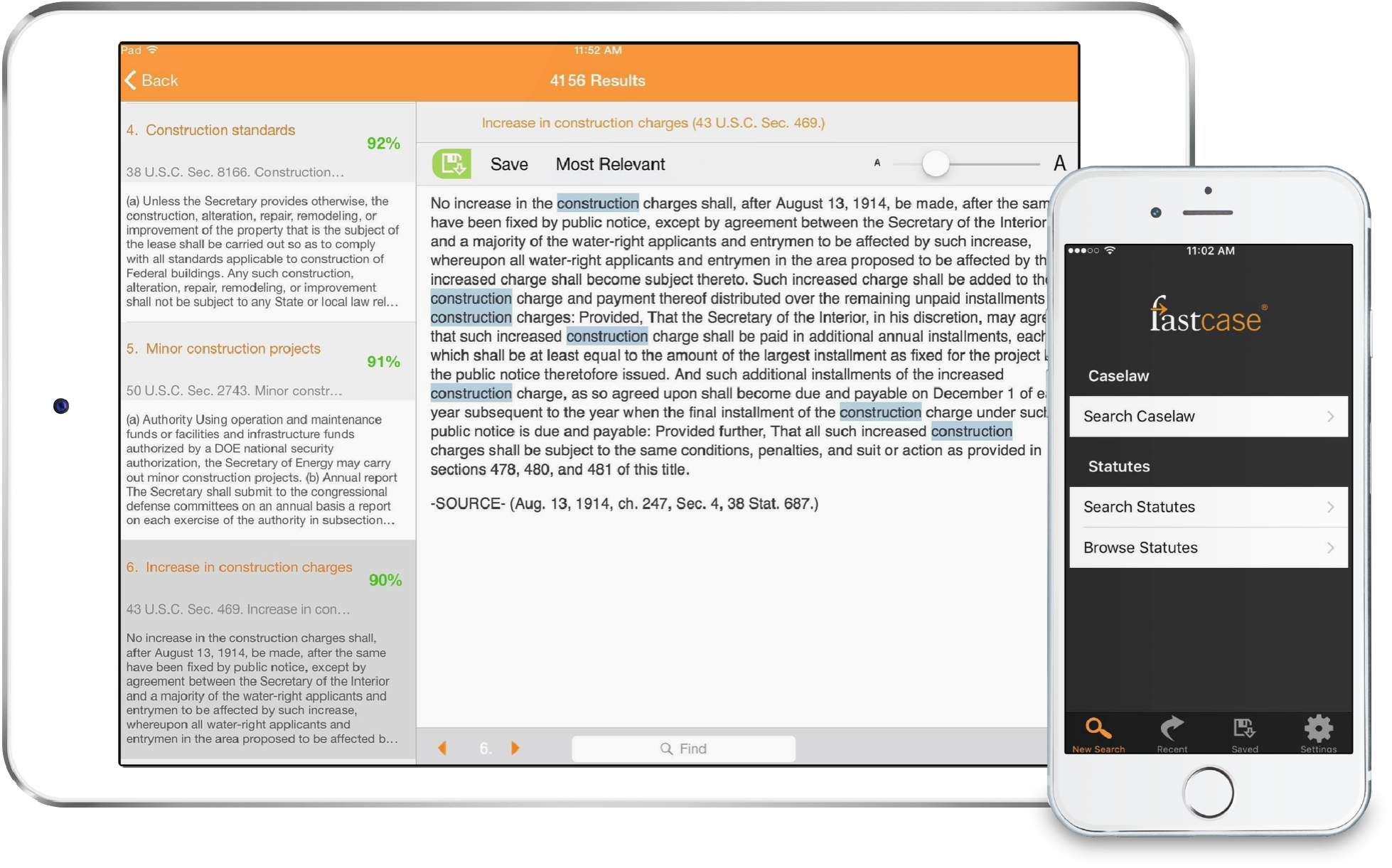
Winner of the prestigious American Association of Law Libraries (New Product) Award, Fastcase for iOS, Android, and Windows Phone is used by more attorneys than any other legal app according to the ABA. Anyone may use the app for free to access Fastcase's comprehensive legal research database on the go.